If you are using Internet Explorer, your browser is either older than version 9 or is in compatibility mode. In either case, the Workplace Giving Portal will not work with your current browser/settings.
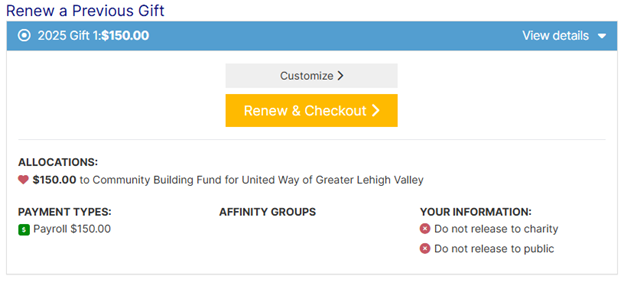
If any changes need to be made (such as payment method, allocations or amount) Select Customize
If no changes need to be made, select Renew & Checkout - this will take you directly to the confirmation screen and your pledge will be complete
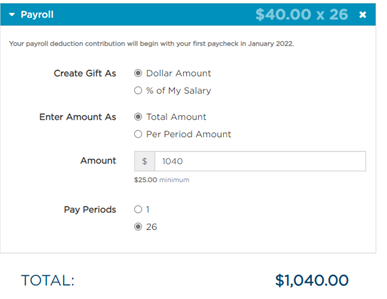
For Payroll Deduction
Choose either Dollar Amount or % of Salary. Enter your gift amount either by the Total Amount or Per Pay Period Amount.
You can also calculate your gift by entering your estimated annual salary and the updated % of salary. Your HR Department will verify and confirm the gift amount.
Click Continue.
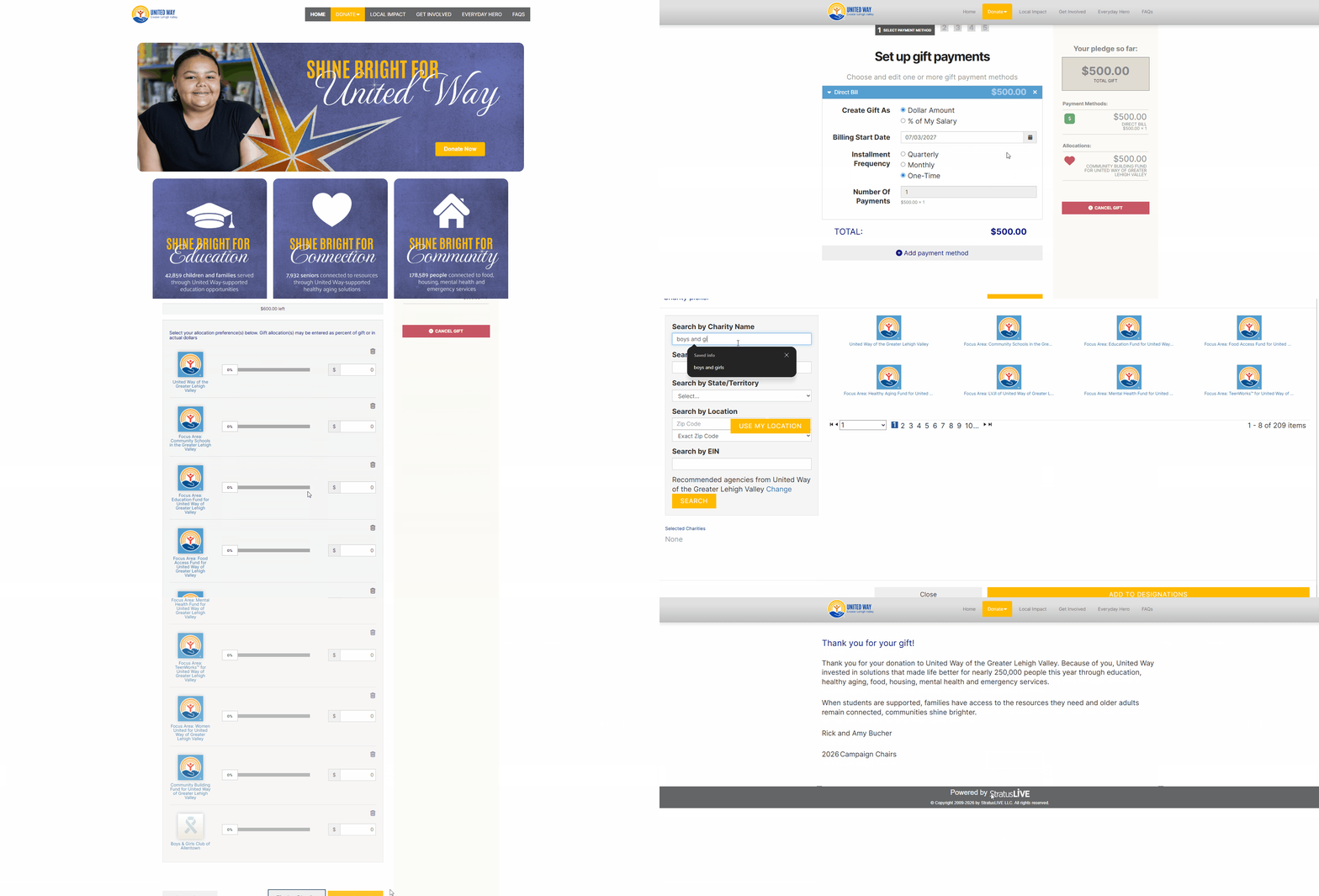
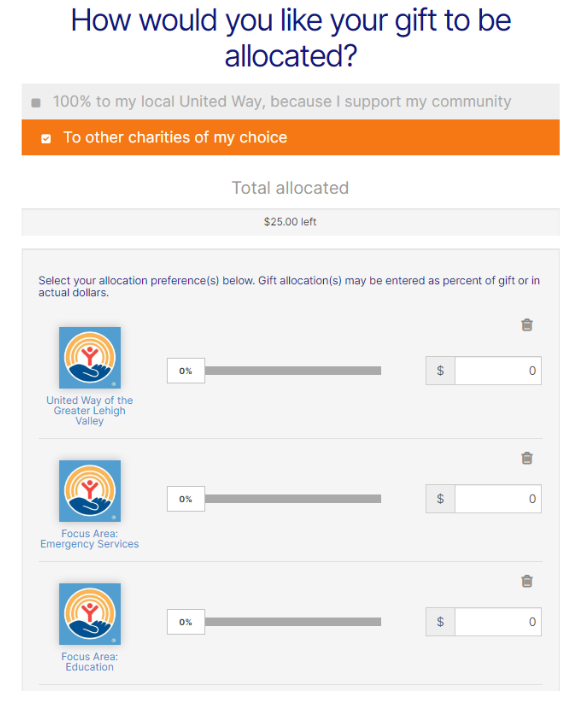
To allocate your gift, use the sliders or enter amount(s). If you want to allocate to another nonprofit, follow the steps below.
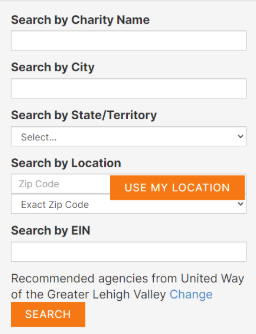
Click Find a Charity.
Search by Charity Name or Description.
If charity does not appear at first, try:
Search by Location and update the search to use a smaller zip code range.
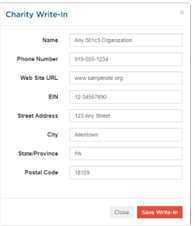
If charity does not appear, choose write in.
Provide as much information about the charity as possible, including name, city, state and URL if known to ensure your gift is sent to the correct branch if applicable.
Once you have allocated 100% of your gift, follow the rest of the steps to complete your changes. You will see a thank you page when you have successfully finished all the steps.
An automatic email confirmation will be sent to your work email address.